

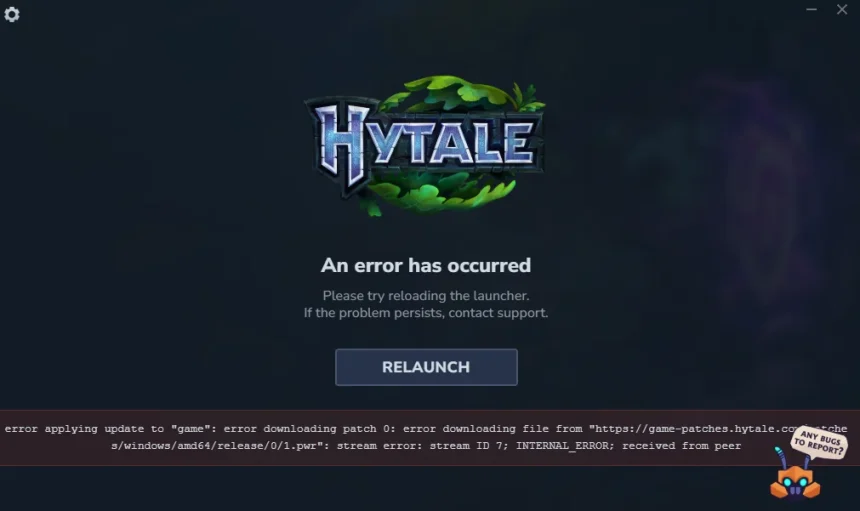
Hytale is finally out in the wild, and the launch has gone more or less as you’d expect for a massively hyped sandbox: servers packed, queues everywhere and a lot of players stuck before they even reach the main menu. Instead of exploring, many people are staring at frozen progress bars, looping patch errors or a strange store message telling them that a “basket” doesn’t exist.
This guide pulls together the main download and install issues players are running into right now and walks through the fixes that are actually helping, without telling you to reinstall Windows or buy new hardware.
1. Download stuck or patch error
The most common situation looks like this:
- The download climbs for a while, then gets stuck on one percentage.
- After sitting there for several minutes, it throws a generic error about failing to download or apply a patch.
Most of the time, this is not about your PC specs or drive space. It usually means the Hytale launcher failed to grab a specific file from the servers while they were overloaded, or lost the connection mid‑patch.
First steps to try
Before you do anything complicated, go through this basic loop:
- Close the Hytale launcher completely. Make sure it’s not just minimised in the tray.
- Right‑click the launcher icon and choose Run as administrator.
- Start the download again and watch whether it progresses further than before.
Plenty of players report that the game only finished downloading after they repeated this process a few times. When the problem is server instability, sometimes brute‑forcing a few retries is enough to catch a more stable moment.
If the error pops up instantly or always at the same point, move on to the next steps.
2. Reinstall the launcher and clear broken files
If the launcher has already failed several times, it may have left behind half‑downloaded or corrupted files. Each new attempt then hits those same files and falls over in exactly the same way.
A clean reset often fixes that:
- Uninstall the Hytale launcher from Windows.
- Go to the folder where the game was being installed and delete any leftover Hytale files.
- Visit the official Hytale website and download the latest installer again.
- Install the launcher fresh and start the download from zero.
Think of this as wiping the slate so the patch system doesn’t have to deal with broken leftovers from earlier attempts.
3. Check antivirus and firewall blocks
Another thing that trips people up: the installer needs to add firewall rules and talk constantly to Hytale’s servers. Some antivirus tools and endpoint protection suites silently block that traffic.
Red flags that this might be your problem:
- The installer hangs on messages about adding firewall rules.
- The launcher never seems to get past the very first stage, even though your internet is fine for everything else.
If that sounds familiar, do this:
- Open your antivirus or security suite (Windows Defender, RAV, etc.).
- Look in the recent events or quarantine section for anything mentioning Hytale or its installer.
- If you find an entry, mark it as allowed or trusted.
- Add the Hytale launcher and its install folder to the exclusions list for both your antivirus and firewall.
- Run the installer or launcher again as administrator.
Only consider temporarily disabling your antivirus if you’re absolutely sure the installer came from the official site, and remember to turn protection back on as soon as you’re done.
4. Try a different connection (or a VPN)
Sometimes the only issue is the route between your ISP and Hytale’s servers. At peak times, certain paths are just more congested or unstable.
A few simple experiments can make a big difference:
- Connect your PC to a different network (phone hotspot, another Wi‑Fi, etc.) and try the download again.
- Use a VPN, pick a nearby region (for example, a major US or EU location) and restart the launcher once the VPN is connected.
This won’t magically fix a fully down server, but it can help if the bottleneck is somewhere along your current route.
5. Installer stuck while setting up the launcher
Not everyone gets as far as a patch error. In some cases, the launcher installer itself freezes partway through setup – often while showing text about configuring the firewall or network access.
If the installer just sits there with no progress for several minutes, combine the previous tips:
- Close the installer.
- Whitelist it in your antivirus and firewall.
- Right‑click and Run as administrator.
- Install to the default path if possible, rather than a custom drive.
If you’re on a work or school machine with heavy endpoint protection, you may be fighting restrictions that you can’t override. In that case, installing Hytale on a personal PC is usually simpler than trying to wrestle with corporate policies.
6. “A basket with that identifier does not exist” on the Hytale Store
Another common issue isn’t tied to downloading the game itself, but to buying it. When some players try to purchase Hytale on the official store, they see an error like:
“A basket with that identifier does not exist.”
That message is coming from the store backend. It usually means your current cart (“basket”) no longer matches what the server expects – often because the session expired or the store is under heavy load.
To get past it, you can:
- Refresh the page and try adding the game to your cart again.
- Log out of your account on the store, then log back in and restart the purchase.
- Clear cookies and cache specifically for the Hytale site, then reload.
- Try a different browser or a private/incognito window.
If you still get the same message after all that, it’s almost certainly a temporary store problem on Hytale’s side. Give it some time and try again later.
7. When the real fix is just waiting
The frustrating part of any big online launch is that sometimes you can do everything “right” and still hit a brick wall. If you’ve:
- Restarted and reinstalled the launcher,
- Checked your antivirus and firewall,
- Tried a different connection or a VPN,
- And confirmed that your PC meets the basic requirements,
…so the most likely bottleneck is on the server or store infrastructure side.
At times like these, the best thing you can do is try downloading during less busy hours (early morning or outside of peak hours in your region) and keep an eye out for official announcements from the developers regarding maintenance or instability.
The good news is that chaotic launch downloads are usually just a phase: after the initial surge of players decreases and the servers are adjusted, installing Hytale tends to become a much simpler process than it seems in the first few days.